Virtual court hearing tips, with your exhibits ready on screen
Hearing mode shows your exhibits one at a time, full screen, in exhibit order, along with your timeline. If your court allows screen sharing, share that window; either way, your numbered exhibit PDF is ready to submit the way your court asks.
One exhibit at a time, full screen, for a screen-share
On a video call, a cluttered screen makes it hard for anyone to see the page you mean. Hearing mode fills the window with a single exhibit, in exhibit order, and the arrow keys move to the next one. Ask the clerk before the hearing whether screen sharing is allowed and who controls it; many courts want exhibits submitted ahead instead. If you'll be presenting from a laptop, try hearing mode during your test call so you know how it looks on the other end.
A full-screen view of your exhibits one at a time, in exhibit order
Arrow keys to move forward or back
Your timeline in the same view
Runs in a browser window, so you can share just that window if sharing is allowed
2of 4
Exhibits sent ahead, numbered the way your court asks
Many courts that hold video hearings ask for exhibits to be filed, emailed or uploaded before the hearing, often with a deadline and a labeling format. Read your hearing notice and local rules first, then build one numbered PDF so the judge, the other side and you are all looking at the same page numbers. Keep a note of when and how you sent them, in case anyone asks on the day.
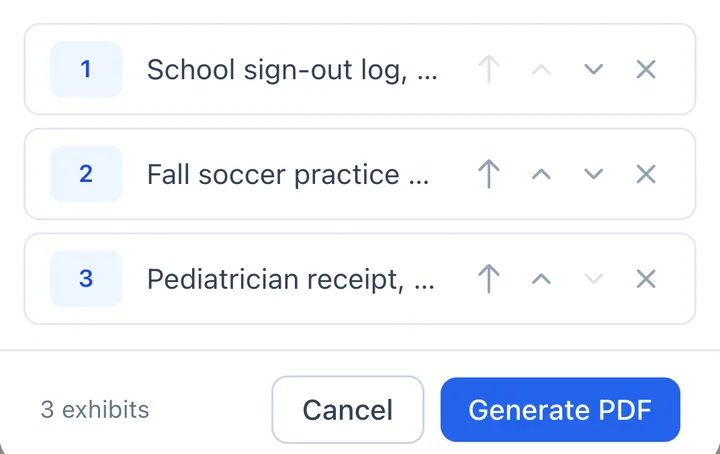
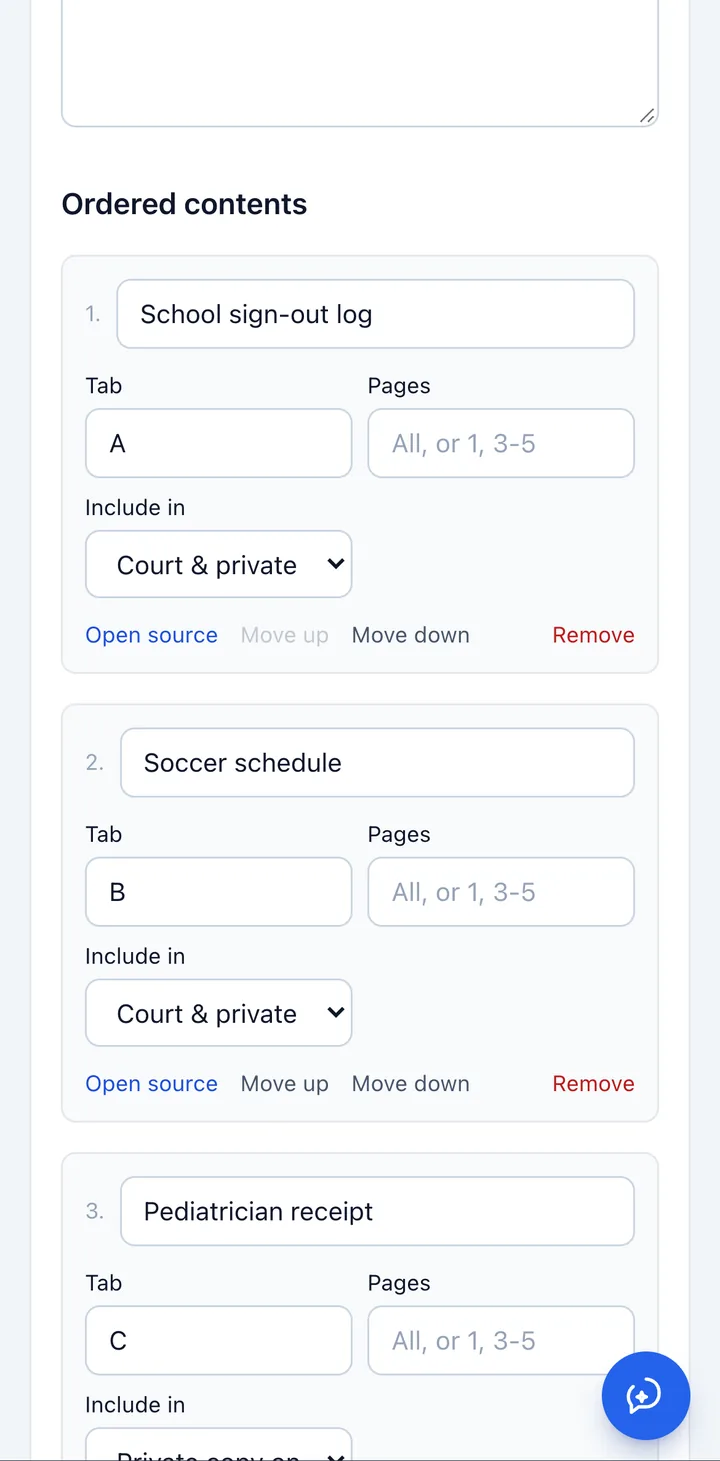
Exhibits numbered in the order you set, or with a label you type
One exhibit PDF with a cover and index page
Large exhibit sets split into parts
A tabbed binder with a contents page and page numbers on every page
Download the full binder or a single tab as one PDF
Free-plan PDFs are watermarked DRAFT. Paid plans export clean.
3of 4
Notes in large text, kept off the shared screen
On camera, looking down at papers for long stretches is easy to notice. Keep your points short and in large text so a glance is enough, and keep them on a separate window or device from the one you share. Your private notes never go into court exports. Link each note to its exhibit number, so you can say "Exhibit 3, page 2" without hunting for it.
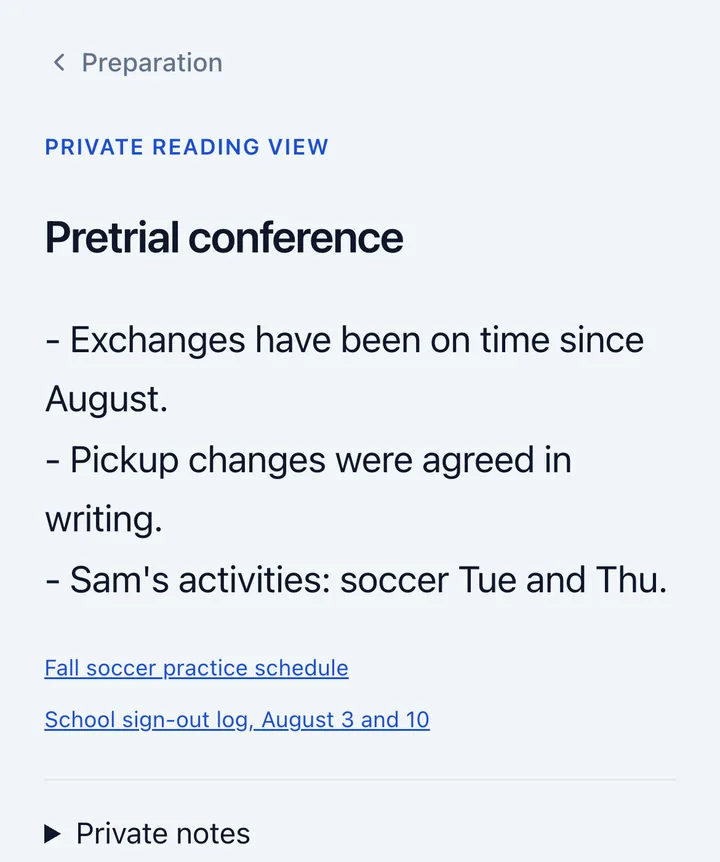
Reading order and short notes in large text
Each note linked to the exhibit it mentions
Private notes kept out of court exports
Finish a desk to keep a snapshot of what you prepared
Many video-hearing problems show up in a test run: a camera that won't start, a sign-in screen, an update that takes twenty minutes. Set a reminder for a test a day or two ahead, on the same device, room and connection you'll use, and another to join early on the day. Put the court's phone number in the reminder notes, too. Close other apps on the computer you'll share from, so nothing private pops up mid-hearing.
General organizing tips, not legal advice. Your court's own rules come first.
Plans and pricing
Start free. Upgrade only if you need more.
The free plan needs no credit card and never expires. Hearing prep draws on your evidence, documents and timeline, so Full Suite covers all of it; for one hearing, the Hearing Pass is below.
Free
For getting your evidence out of your camera roll and into order.
$0
Free forever — no credit card, nothing to cancel.
One case file, unlimited court case numbers
10 evidence items, 1 GB of storage
Organize, describe, tag, search
Watermarked printable PDF export
6 AI actions to try the tools (one-time, not monthly)
Create your account, then after a short setup you can try Full Suite free for 7 days. Card required; then $24.99/mo or $299/yr (about 82¢ a day) until you cancel. Cancel before day 7 and you pay nothing. Or subscribe now — $299/yr
50% off · 20× the AI
Full Suite Max
Everything in Full Suite, with 20× the AI actions.
$99.99$49.99/mo
or $899/yr$399/yr
Everything in Full Suite: all five tools and the assistant
6,000 AI actions a month (20× Full Suite)
50% off (normally $99.99/mo), locked in as long as you don’t cancel
Already on Full Suite? Get 20× the AI credits for only +$25/mo more (prorated in place)
Clean, printable exports + free attorney & advocate access (on every plan)
$49.99 a month, renews until you cancel. Cancel online in two clicks.
Hearing Pass · one-time
$49 once for 30 days of hearing prep. Nothing renews.
Everything in Full Suite for 30 days from the day you buy it: all five tools, the assistant, AI included, and exports without a watermark. No subscription and nothing to cancel. When the 30 days end you’re back on the free plan, and nothing you added is deleted.
Your case stays private to your account until you invite someone and choose what they see. Data is encrypted in transit and at rest, and we don’t sell your personal information.
Your files stay yours
Originals are kept unchanged. Download your complete Case Bundle, every original file plus a manifest, free on any plan, before or after you cancel.
Cancel anytime, in two clicks
The free plan has nothing to cancel. Paid plans renew until you cancel online in two clicks, and the Hearing Pass never renews.
Organizing software, not a law firm
It organizes the files, dates and messages you provide. It doesn’t give legal advice, choose what you file or predict what a court will do.
Questions, answered straight
Frequently asked questions
Can I share my screen during a virtual custody hearing?
It depends on your court and the judge. Some allow screen sharing; many ask for exhibits to be submitted before the hearing instead. Ask the clerk, or check your hearing notice and local rules. If sharing is allowed, hearing mode shows one exhibit at a time, full screen.
How do I show exhibits on Zoom in court?
Start with your court's instructions for submitting exhibits, which usually come before the hearing. During the hearing, refer to each exhibit by its number and page so everyone can find it. If the judge allows you to share, open hearing mode and share that window.
What if my connection drops during the hearing?
Rejoin as quickly as you can, and if you can't, call the number the court gave you. Keep the dial-in and court phone numbers on paper before you start. Your hearing notice may say what to do if the technology fails. A charged phone nearby gives you a backup way to call in.
Can I join a virtual hearing from my phone?
Many video platforms allow it, but a computer usually makes it easier to see the judge, read your notes and open exhibits. If a phone is what you have, prop it up at eye level, plug it in, and test the link ahead of time. Check your hearing notice for any device requirements.
Do I need to install anything?
Not for Custody Commander: it runs in a web browser on a phone or computer. Your court's video platform may have its own app or browser requirements, so check the hearing notice and test it ahead of time.
Is it free?
Yes. The free plan needs no card: one case, 10 evidence items, 1 GB and 6 AI actions, with DRAFT-watermarked exports. For clean exhibit PDFs, choose a paid plan or the one-time Hearing Pass, $49 for 30 days of everything, which never renews.
Is this legal advice?
No. Custody Commander is organizing software, not a law firm, and nothing on this page is legal advice. It helps you organize and show your own exhibits. For advice about your hearing, talk to a licensed attorney where you live.
Get your exhibits ready for a video hearing
Start free, number your exhibits, and open them one at a time in hearing mode. Organizing software, not a law firm; not legal advice.