
Read & ask New
Highlight any line in your court papers. Ask what it means.
Open an order, a motion, a parenting plan or a letter from the other side. Highlight the words that stopped you, or tap the whole paragraph, and ask: What does this mean? Is there a deadline here? Who has to do what? You get a plain-words explanation built from your document’s own text, saved right on that passage, next to your own comments and color highlights.
The free plan includes 6 AI actions to try it. Each question uses one. Highlights and comments never use any.
How it works
Three moves: select, ask, keep your notes.
Read & ask is part of Documents. Every document you upload or write opens as a clean page you can mark up, and the original file stays exactly as it came in.
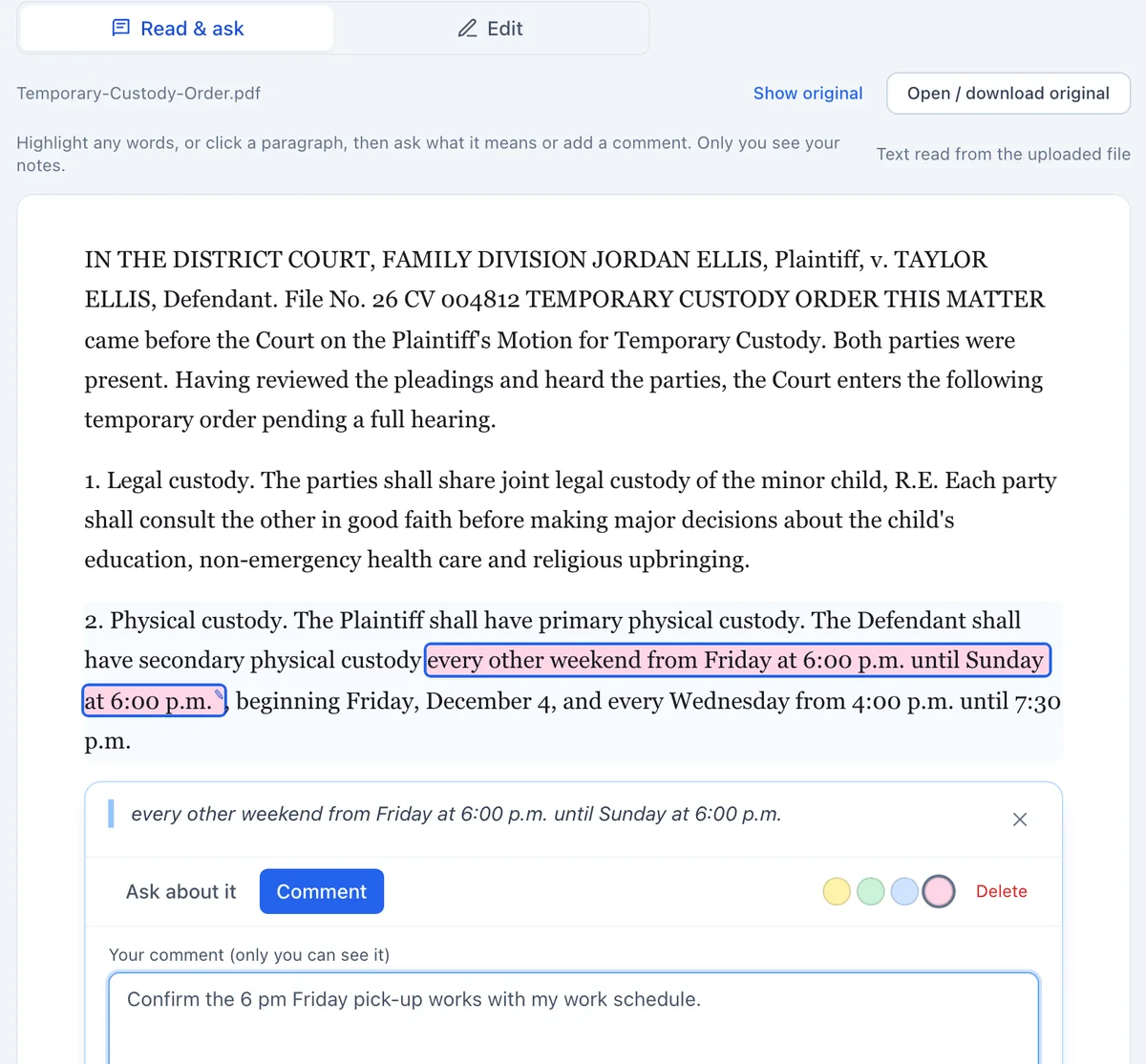
Highlight words, or tap a paragraph
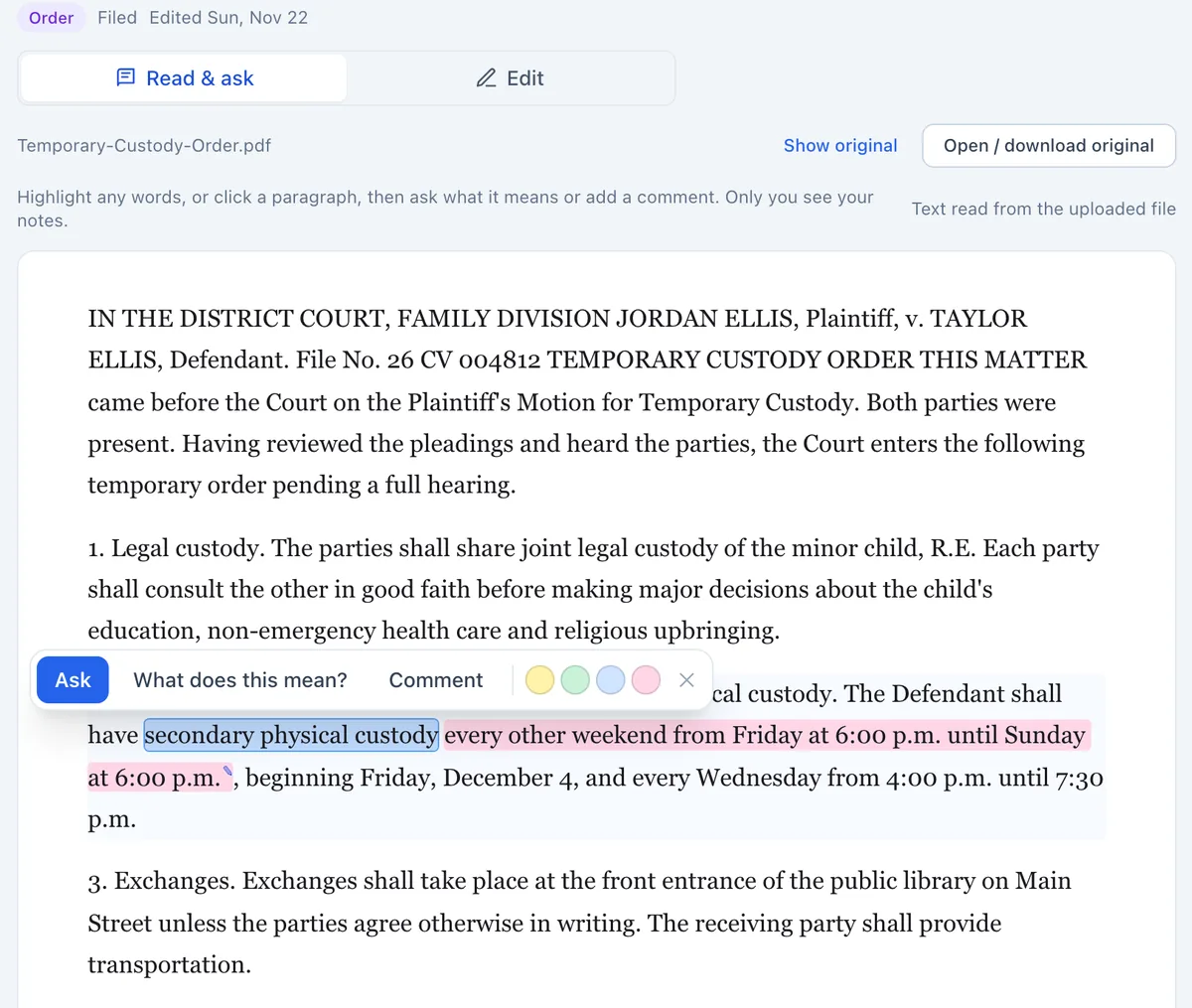
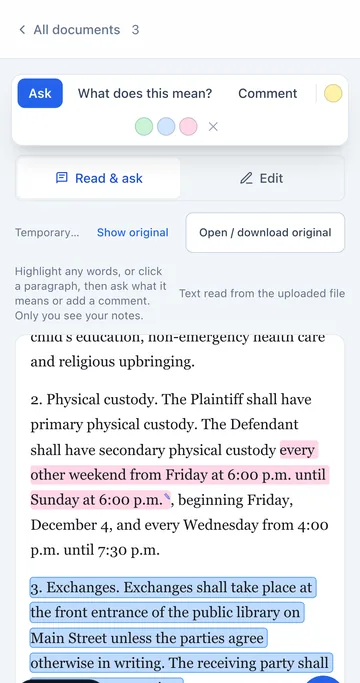
Drag across the words you want to ask about, or tap once to pick a whole numbered paragraph. A small bar appears over your selection:
- Ask a question in your own words
- What does this mean? in one tap
- Comment to leave yourself a note
- Four highlight colors, so you can sort what matters to you
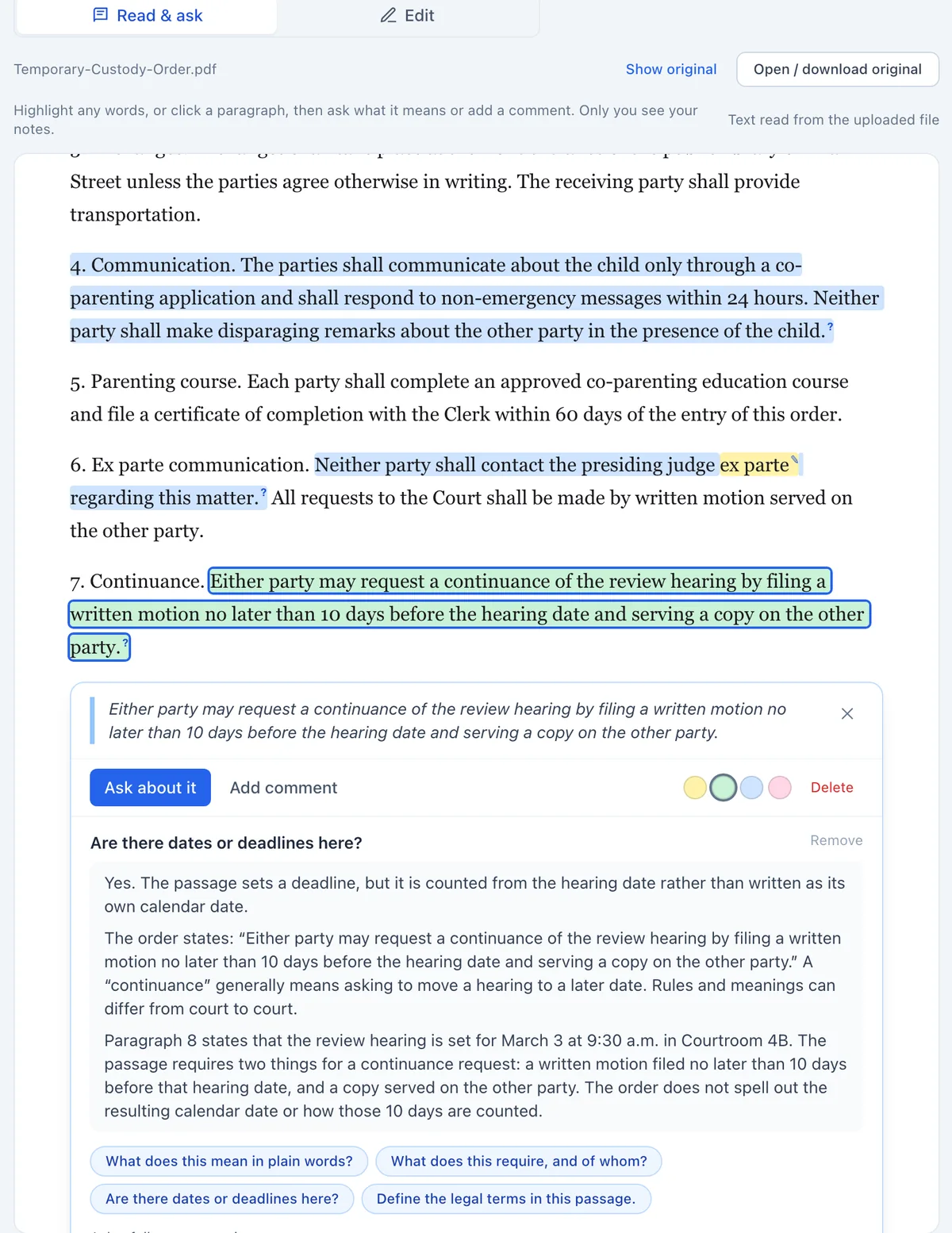
Ask, and get an answer in plain words
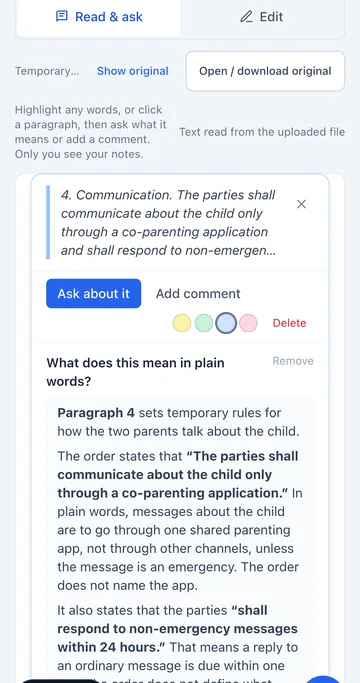
Type your own question or tap a ready one. The answer opens right under the passage and is saved there, so it’s waiting the next time you open the document. Ask a follow-up and it remembers what it already told you.
- It reads the passage, the text around it and the top of the document, so it knows which order and which paragraph you mean.
- It quotes the document’s exact words so you can check every point against the page.
- When the document doesn’t answer your question, it says so instead of guessing.
Comment, color-code, and find it all again
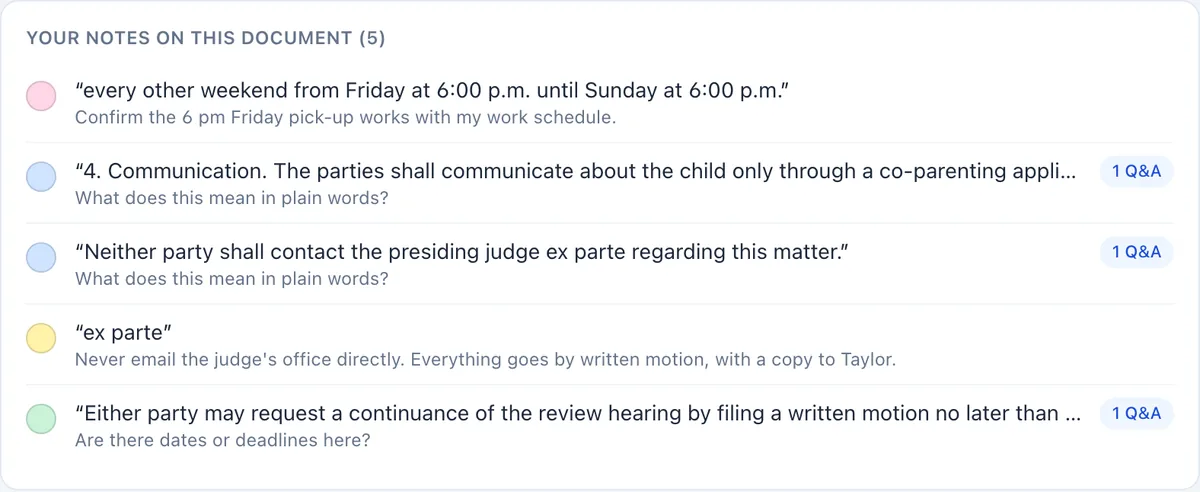
Leave yourself a note on any highlight: what to check, what to bring up, what you already confirmed. Every highlight, comment and answer is listed under the document, so you can jump straight back to the line it belongs to.
- Change a highlight’s color or delete it any time.
- If the document’s text changes later, your notes find their words again. If the words are gone, the note is kept and marked.
- Highlighting and asking never change the document itself.
Scans, photos and locked PDFs
Can’t highlight your PDF? Make it selectable first.
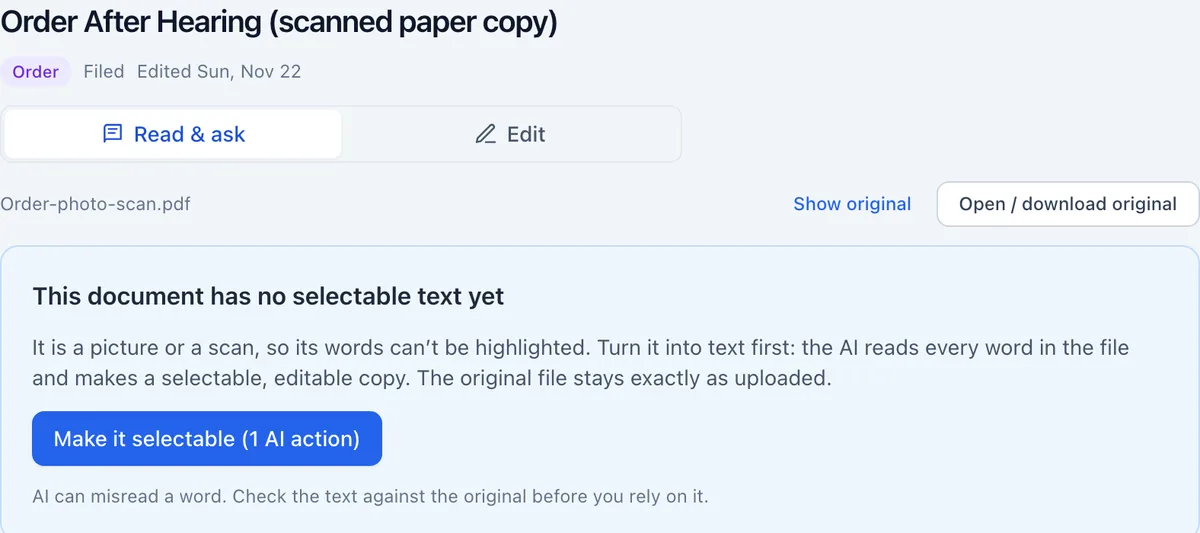
A scanned order or a photo of a paper copy is a picture, so there are no words to select. Open it in Read & ask and press Make it selectable: the AI reads every word in the file and turns it into a clean, selectable and editable copy, paragraph by paragraph. It uses one AI action. Your original file is kept exactly as uploaded, and you can open it side by side any time.
A scan with no selectable text
Every paragraph ready to highlight and ask about
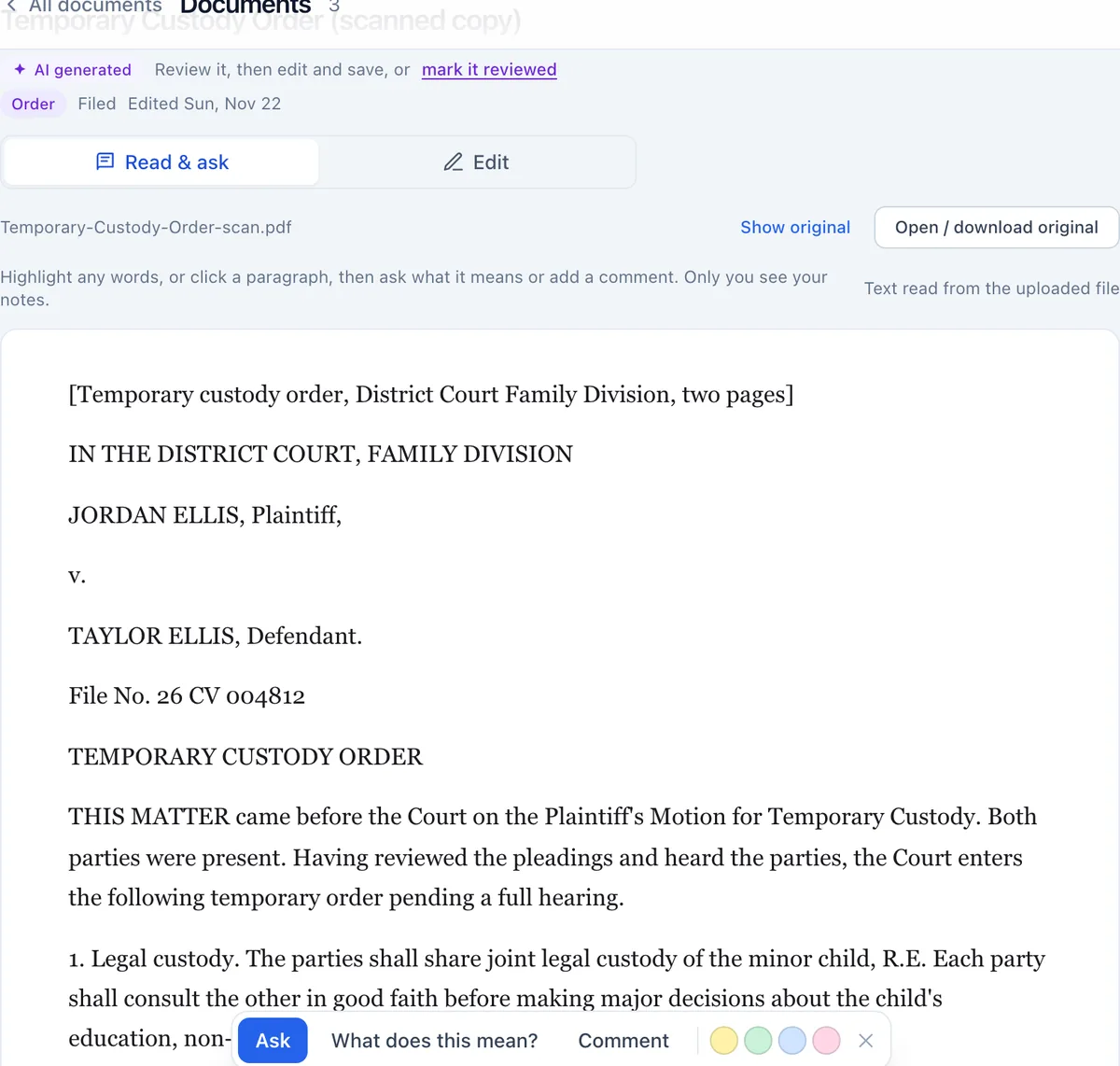
AI can misread a word, especially on a blurry photo. The text is marked “AI generated” until you review it, and you can fix any word under Edit.
Honest limits
It explains what your papers say. You decide what to do about it.
What it does
- Explains a passage in plain words: who it’s about, what it requires or allows
- Points out dates, deadlines, amounts and conditions in the text
- Gives the general meaning of legal and court words, and notes that they can differ from court to court
- Quotes the document so you can check it against the page
- Answers in the language you use the app in: English, Spanish, Chinese, Tagalog or Vietnamese
What it won’t do
- Tell you what to file, what to argue or what to say in court
- Predict how a judge will rule
- Apply the law to your situation. For that, talk to a licensed attorney or your court’s self-help center
- Invent facts, dates or rules that aren’t in your document
Private by default
Your notes are yours alone.
Highlights, comments and saved answers are visible only to the person who made them. If you share a document with your attorney or advocate at the Comment level, they can highlight and ask too, and their notes stay private to them. Sharing is always your choice, item by item, on the Sharing page.
Building your own tools? Passage notes and questions are in the REST API and MCP too, with the same permissions and AI limits as the app.
Common questions
Read & ask FAQ
Is this legal advice?
No. Custody Commander is self-help software, not a law firm. Read & ask explains what the words in your own document say and what common court terms generally mean. It doesn’t tell you what to file or argue, apply the law to your situation or predict a ruling. For that, talk to a licensed attorney or your court’s self-help center.
What kinds of documents work?
PDFs, Word files (.docx), text and Markdown files, documents you wrote in the app, and photos or scans of paper documents once they’re made selectable. Upload them in Documents, open one and choose Read & ask.
My PDF won’t let me highlight anything. Why?
It’s probably a scan: a picture of the pages with no text inside. Open it in Read & ask and press Make it selectable. The AI reads the words into a selectable copy (one AI action), and the original file stays exactly as it was.
How much does it cost?
Highlights and comments are free and unlimited. Each question uses one AI action, and so does making a scan selectable. The free plan includes 6 AI actions to try it, the 7-day Full Suite trial includes 60, and Full Suite includes 300 a month. See pricing.
Who can see my highlights and questions?
Only you. Notes are private to the person who wrote them, even on a document you share. Deleting a note removes its highlight, comment and saved answers for good.
Does highlighting change my document?
No. Highlights, comments and questions sit on top of the text. The document, its history and the original file don’t change.
Can I ask follow-up questions?
Yes. Each answer is saved on its passage, and a follow-up on the same passage sees the earlier answers, so you can ask “What about the second sentence?” without starting over.
Does it work on my phone?
Yes, in your phone’s browser. Tap a paragraph or press and hold to select words, and the Ask bar appears at the top of the screen.
Stop rereading the same paragraph. Ask what it means.
Upload the order, highlight the line, ask what it means. Start free: no card, and the other parent never has to join.
